Managing File Uploads with AWS S3 and CDN in Laravel
A practical guide to storing, serving, and securing file uploads in Laravel using AWS S3 — covering the Storage facade, pre-signed URLs, CloudFront CDN integration, image optimization, and cost-saving lifecycle rules.

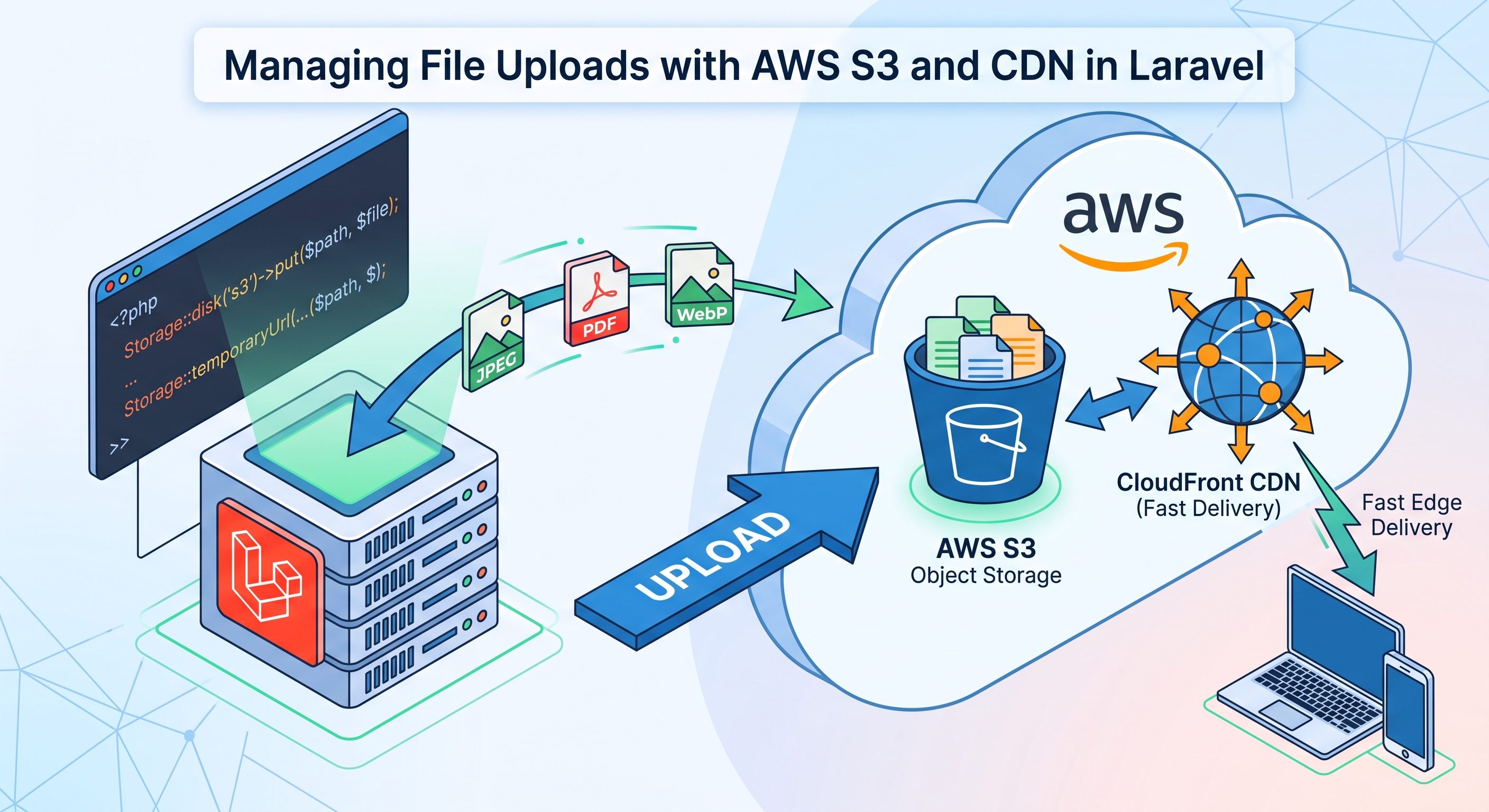
Managing File Uploads with AWS S3 and CDN in Laravel
As applications grow, storing uploaded files on the local disk stops being viable — it doesn't scale across multiple servers, it's vulnerable to data loss, and it puts unnecessary load on your app servers to serve static assets. AWS S3 combined with a CDN like CloudFront solves this: S3 gives you durable, scalable object storage, and the CDN puts your files physically closer to your users for fast delivery. This guide covers setting up both in a Laravel application, from basic uploads through to signed URLs, image optimization, and cost control.
Why S3 + CDN Instead of Local Storage
Local storage works fine for a single-server prototype, but breaks down quickly:
- No redundancy — a disk failure means lost files.
- No horizontal scaling — if you run multiple app servers behind a load balancer, each one has a different local filesystem.
- Slow delivery — files are served through your app server instead of an edge-optimized network.
- No fine-grained access control — hard to generate temporary, expiring links to private files.
S3 solves storage durability and scaling. CloudFront (or another CDN) solves delivery speed and reduces load on S3 itself by caching content at edge locations worldwide.
1. Installing Dependencies
Laravel ships with S3 support via Flysystem. Install the adapter:
composer require league/flysystem-aws-s3-v3 "^3.0"
2. Environment Configuration
FILESYSTEM_DISK=s3

AWS_ACCESS_KEY_ID=your_access_key
AWS_SECRET_ACCESS_KEY=your_secret_key
AWS_DEFAULT_REGION=eu-west-1
AWS_BUCKET=your-bucket-name
AWS_USE_PATH_STYLE_ENDPOINT=false

AWS_CLOUDFRONT_DOMAIN=d123456abcdef.cloudfront.net
AWS_CLOUDFRONT_KEY_PAIR_ID=your_key_pair_id
AWS_CLOUDFRONT_PRIVATE_KEY_PATH=/secure/path/private_key.pem
Laravel's default config/filesystems.php already includes an s3 disk — no changes needed there for basic usage, but it's worth adding a dedicated disk for CDN-served public assets:
'disks' => [
    's3' => [
        'driver' => 's3',
        'key' => env('AWS_ACCESS_KEY_ID'),
        'secret' => env('AWS_SECRET_ACCESS_KEY'),
        'region' => env('AWS_DEFAULT_REGION'),
        'bucket' => env('AWS_BUCKET'),
        'url' => env('AWS_URL'),
        'endpoint' => env('AWS_ENDPOINT'),
        'use_path_style_endpoint' => env('AWS_USE_PATH_STYLE_ENDPOINT', false),
        'throw' => true,
        'visibility' => 'private',
    ],

    's3_public' => [
        'driver' => 's3',
        'key' => env('AWS_ACCESS_KEY_ID'),
        'secret' => env('AWS_SECRET_ACCESS_KEY'),
        'region' => env('AWS_DEFAULT_REGION'),
        'bucket' => env('AWS_BUCKET'),
        'url' => 'https://' . env('AWS_CLOUDFRONT_DOMAIN'),
        'visibility' => 'public',
        'throw' => true,
    ],
],
Setting 'throw' => true makes filesystem operations throw exceptions on failure instead of silently returning false — much easier to debug.
3. Bucket Setup and IAM Policy
Don't use your root AWS credentials. Create a dedicated IAM user scoped to exactly what your app needs:
{
    "Version": "2012-10-17",
    "Statement": [
        {
            "Effect": "Allow",
            "Action": [
                "s3:PutObject",
                "s3:GetObject",
                "s3:DeleteObject",
                "s3:ListBucket"
            ],
            "Resource": [
                "arn:aws:s3:::your-bucket-name",
                "arn:aws:s3:::your-bucket-name/*"
            ]
        }
    ]
}
For files that should never be publicly accessible (contracts, ID scans, invoices), keep the bucket private and block all public access at the bucket level. Public assets (product images, avatars) can live in a separate bucket or prefix fronted by CloudFront.
4. Uploading Files
A simple upload endpoint:
namespace App\Http\Controllers;

use Illuminate\Http\Request;
use Illuminate\Support\Facades\Storage;
use Illuminate\Support\Str;

class FileUploadController extends Controller
{
    public function store(Request $request)
    {
        $request->validate([
            'file' => ['required', 'file', 'max:10240', 'mimes:jpg,jpeg,png,pdf'],
        ]);

        $file = $request->file('file');
        $filename = Str::uuid() . '.' . $file->getClientOriginalExtension();
        $path = "uploads/{$filename}";

        Storage::disk('s3')->put($path, file_get_contents($file), 'private');

        return response()->json([
            'path' => $path,
            'size' => $file->getSize(),
            'mime' => $file->getMimeType(),
        ]);
    }
}
Always generate your own filename (UUID, not the client-provided name) to avoid collisions and path traversal issues, and validate MIME types server-side — never trust the file extension alone.
For larger files, use putFile with streaming to avoid loading the whole file into memory:
$path = Storage::disk('s3')->putFile('uploads', $request->file('file'), 'private');
5. Serving Private Files with Signed URLs
For private buckets, generate temporary signed URLs rather than exposing the bucket publicly:
$url = Storage::disk('s3')->temporaryUrl(
    $path,
    now()->addMinutes(15)
);
This produces a pre-signed S3 URL valid for 15 minutes — long enough for a download link in an email or a dashboard view, short enough to limit exposure if the link leaks.
6. Serving Public Files via CloudFront
For public assets, don't serve directly from S3 — route through CloudFront so requests hit the edge cache instead of S3 on every load.
class FileUrlService
{
    public function publicUrl(string $path): string
    {
        return 'https://' . config('services.cloudfront.domain') . '/' . ltrim($path, '/');
    }
}
If some content behind CloudFront still needs to be access-controlled (e.g., paid video content), use CloudFront Signed URLs instead of plain S3 signed URLs — this keeps the CDN caching benefit while still expiring access:
use Aws\CloudFront\CloudFrontClient;

class CloudFrontSignedUrlService
{
    public function sign(string $path, int $expiresInMinutes = 60): string
    {
        $client = new CloudFrontClient([
            'region' => config('services.cloudfront.region'),
            'version' => 'latest',
        ]);

        return $client->getSignedUrl([
            'url' => 'https://' . config('services.cloudfront.domain') . '/' . ltrim($path, '/'),
            'expires' => now()->addMinutes($expiresInMinutes)->timestamp,
            'private_key' => config('services.cloudfront.private_key_path'),
            'key_pair_id' => config('services.cloudfront.key_pair_id'),
        ]);
    }
}
7. Image Optimization on Upload
For image-heavy applications, resize and compress on upload rather than serving full-resolution originals everywhere. Using Intervention Image:
composer require intervention/image
use Intervention\Image\Laravel\Facades\Image;

public function store(Request $request)
{
    $file = $request->file('file');
    $filename = Str::uuid() . '.webp';

    $image = Image::read($file)
        ->scaleDown(width: 1600)
        ->toWebp(quality: 80);

    Storage::disk('s3_public')->put("images/{$filename}", (string) $image, 'public');

    // Also generate a thumbnail
    $thumb = Image::read($file)
        ->cover(300, 300)
        ->toWebp(quality: 75);

    Storage::disk('s3_public')->put("images/thumbs/{$filename}", (string) $thumb, 'public');

    return response()->json(['filename' => $filename]);
}
Converting to WebP typically cuts file size by 25–35% over JPEG at comparable visual quality, which reduces both storage cost and CDN transfer cost.
8. Cache Invalidation
CloudFront aggressively caches based on your distribution's TTL settings. If you overwrite a file at the same key (e.g., a user updates their avatar), the CDN may keep serving the stale cached version until the TTL expires.
Two common approaches:
Option A — Cache-busting filenames (preferred): never reuse a key; generate a new UUID on every upload and update the database reference. No invalidation needed.
Option B — Explicit invalidation: when you must overwrite a key, invalidate it via the AWS SDK:
use Aws\CloudFront\CloudFrontClient;

$client = new CloudFrontClient([
    'region' => 'us-east-1', // CloudFront API is always us-east-1
    'version' => 'latest',
]);

$client->createInvalidation([
    'DistributionId' => config('services.cloudfront.distribution_id'),
    'InvalidationBatch' => [
        'CallerReference' => (string) now()->timestamp,
        'Paths' => [
            'Quantity' => 1,
            'Items' => ['/images/avatar-123.webp'],
        ],
    ],
]);
Invalidations aren't free at high volume, so option A scales better for apps with frequent updates.
9. Cost Control with Lifecycle Rules
S3 costs accumulate quietly. Set lifecycle rules in the S3 console (or via Terraform/CDK) to manage this automatically:
- Move files untouched for 30+ days to S3 Infrequent Access or Glacier for archival data (e.g., old invoices).
- Auto-expire temporary uploads (e.g., a
tmp/prefix used for in-progress multi-step forms) after 24 hours. - Enable S3 Intelligent-Tiering for buckets with unpredictable access patterns — it moves objects between tiers automatically based on usage.
{
    "Rules": [
        {
            "ID": "ExpireTempUploads",
            "Prefix": "tmp/",
            "Status": "Enabled",
            "Expiration": { "Days": 1 }
        },
        {
            "ID": "ArchiveOldInvoices",
            "Prefix": "invoices/",
            "Status": "Enabled",
            "Transitions": [
                { "Days": 90, "StorageClass": "GLACIER" }
            ]
        }
    ]
}
10. Testing Locally
Use MinIO as a drop-in local S3 replacement during development, avoiding AWS costs and network calls in your test suite:
# docker-compose.yml
minio:
  image: minio/minio
  ports:
    - "9000:9000"
    - "9001:9001"
  environment:
    MINIO_ROOT_USER: minioadmin
    MINIO_ROOT_PASSWORD: minioadmin
  command: server /data --console-address ":9001"
Point AWS_ENDPOINT at http://localhost:9000 and set AWS_USE_PATH_STYLE_ENDPOINT=true in your local .env. For automated tests, Laravel's Storage::fake('s3') avoids network calls entirely:
public function test_file_can_be_uploaded(): void
{
    Storage::fake('s3');

    $response = $this->postJson('/upload', [
        'file' => \Illuminate\Http\UploadedFile::fake()->image('avatar.jpg'),
    ]);

    $response->assertOk();
    Storage::disk('s3')->assertExists($response->json('path'));
}
Production Checklist
- Bucket public access blocked at the account/bucket level unless explicitly needed
- IAM user scoped to only the required actions and bucket
- CloudFront distribution configured with HTTPS-only viewer policy
- Signed URLs used for any private or time-sensitive content
- Lifecycle rules configured to control long-term storage cost
- Upload validation covers MIME type, file size, and extension — not just one
- Monitoring/alerting on S3 request errors and unexpected cost spikes (AWS Budgets)
Wrapping Up
S3 and CloudFront together give you durable storage and fast global delivery without maintaining any infrastructure yourself. The pattern that matters most is separating private, access-controlled files (signed URLs, short expiry) from public, cacheable assets (CDN-fronted, cache-busted filenames) — mixing the two up is where most integrations run into trouble, either through security leaks or stale content. Start with the basic upload flow, then layer in image optimization and lifecycle rules once you understand your actual usage patterns.